Searching and Downloading
Using optical character recognition or OCR within any viewer will allow you to search for specific words within the text of the volume.
Example: Let's say you want to find the undergraduate photo for Jimmy Stewart Class of 1932, which would be within the 1932 Nassau Herald. The following images and instructions will show how to use the search feature and download images. Each example photo can be clicked on for a larger view in these instructions. These can be used on any of the yearbooks.
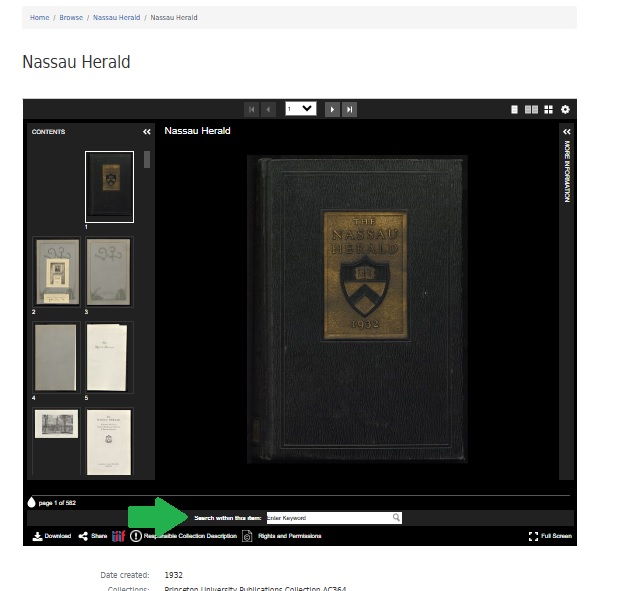
Using the OCR search within the viewer window
The green arrow in the bottom of the viewer shows you where to enter search text. Single names do work better than full names as abbreviations were commonly used.
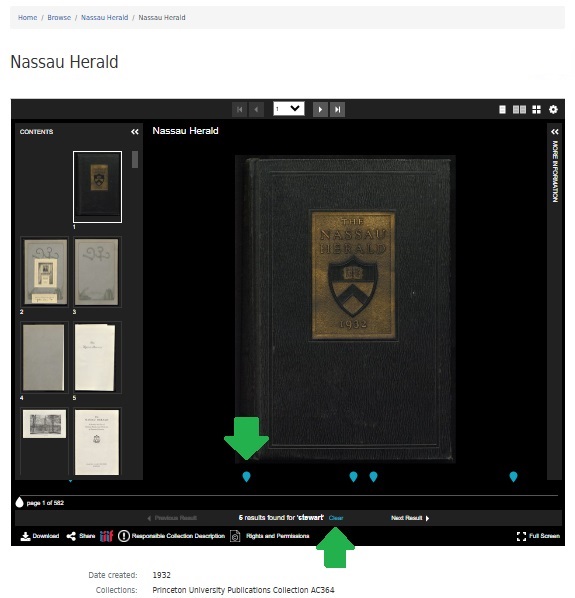
Search Results
Here we searched the last name Stewart, which then displays results in blue raindrop icons. Both are indicated with green arrows for explanation.
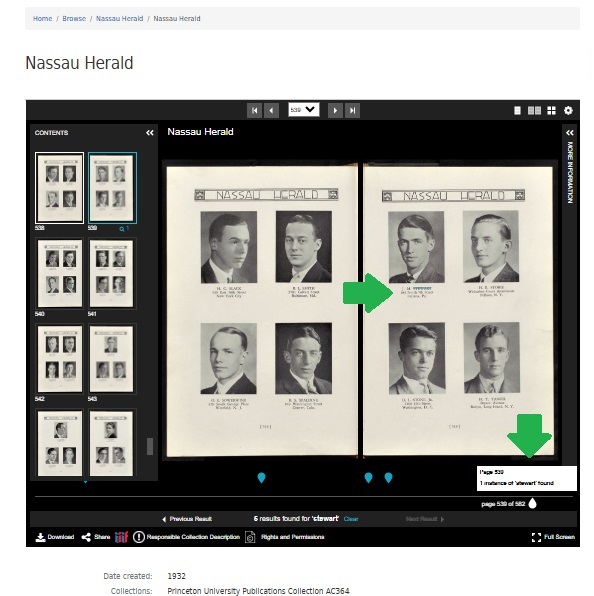
View after clicking a results raindrop
Here we clicked on the final raindrop and we see the photo of James Stewart. You can also see the name highlighted in blue which is the result of the OCR. As you can see if we had searched for Jimmy Stewart or James Stewart we would not have found the item as his first and middle names were abbreviated.
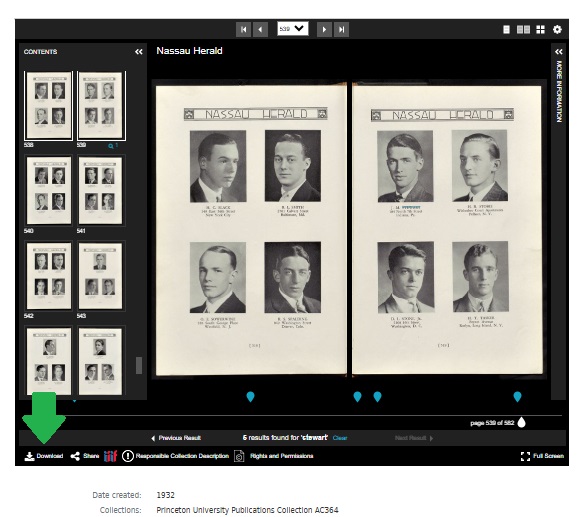
Downloading images from viewer
The green arrow here indicates where you can download images from the viewer.
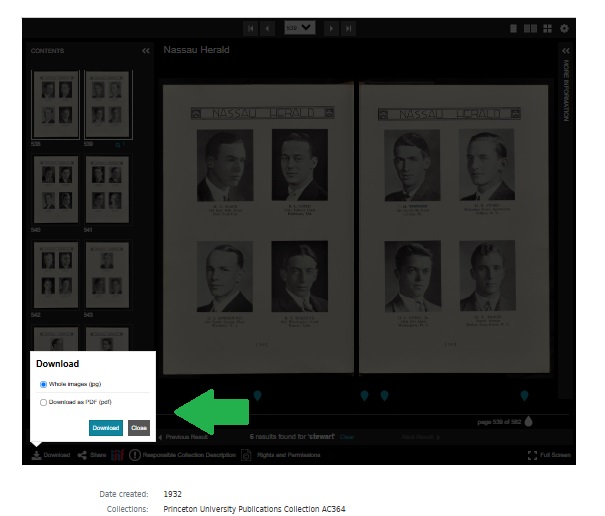
Download options
Once you click "Download" you are presented with options that you can choose for your needs. From this view you are offered low resolution options of JPEG and PDF.
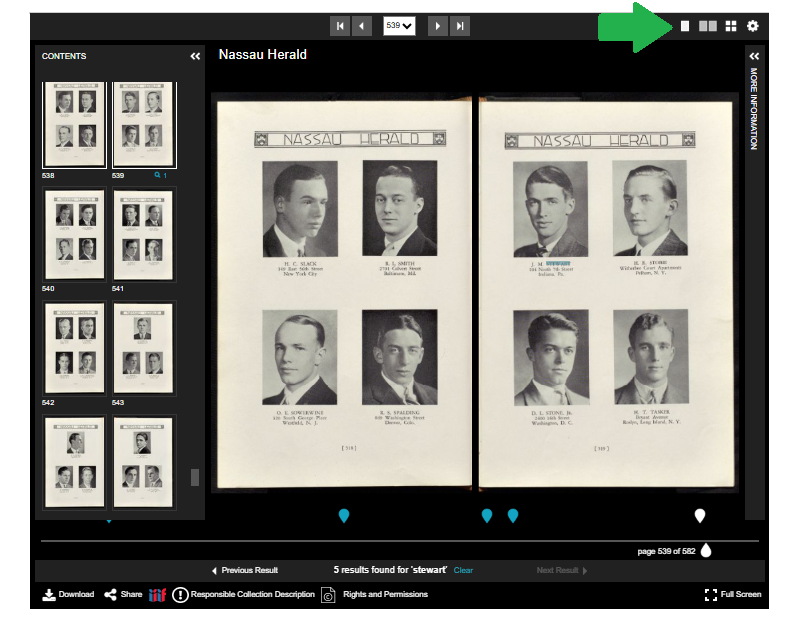
Single page view for high resolution downloads
In order to get a high resolution download of images you need to be in the single page view. You can toggle to that view by clicking the single page icon which is shown to the right of the green arrow.
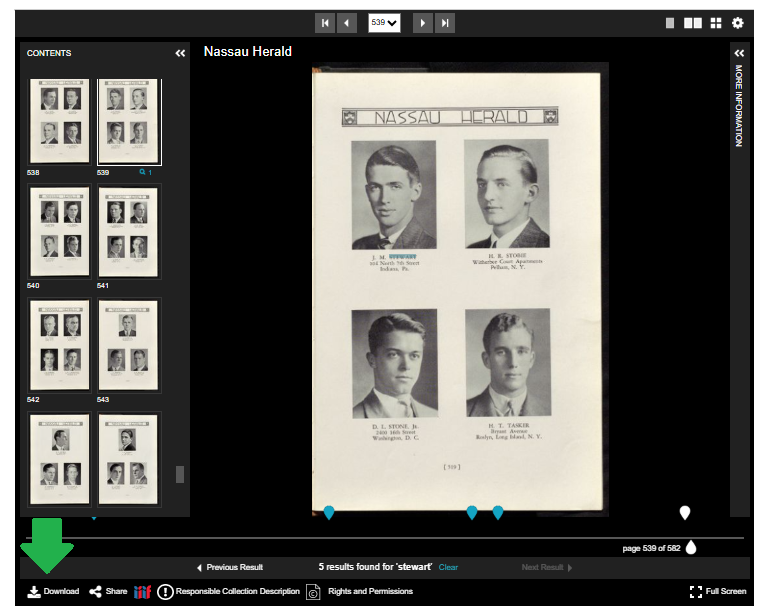
Single page view after selection
This is the view you will have once you have toggled to the single page view.
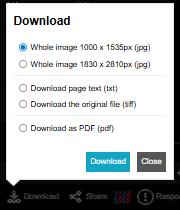
High Resolution Download options
This image indicates the options that you have for high resolution downloads.